
Digital Services » Digital Service Delivery » IT News » Student – Windows 11
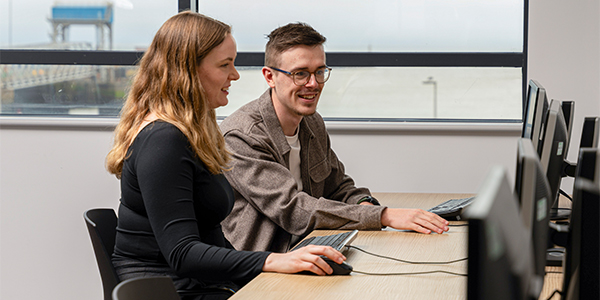
Windows 11 is available on your open-access PCs and computer lab PCs
Windows 11 provides a modern, secure and productive computing experience while keeping the university applications and services you use every day. This page explains what’s new,
what stays the same, and how to get started.
Summer upgrades completed — Windows 11 is ready to use.
Digital Service Delivery completed the Windows 11 upgrades to student open-access PCs and computer lab PCs over the summer.
Simply sign in using your usual university account to start using Windows 11.
The Start menu is now centred at the bottom of your screen. Pinned apps are at the top; recent files appear below. You can right-click the taskbar to move it back to the left if you prefer.
Notifications are consolidated into a cleaner panel. Focus assist lets you block distractions during study sessions and set quiet hours.
Your Microsoft 365 apps and university software remain available. Files saved to your university OneDrive can be accessed when you sign in.
Sign in with the same university username and password as before. Nothing changes about how you access university systems.
Word, Excel, PowerPoint, Teams, and OneDrive all work exactly as before and are already installed on your upgraded device.
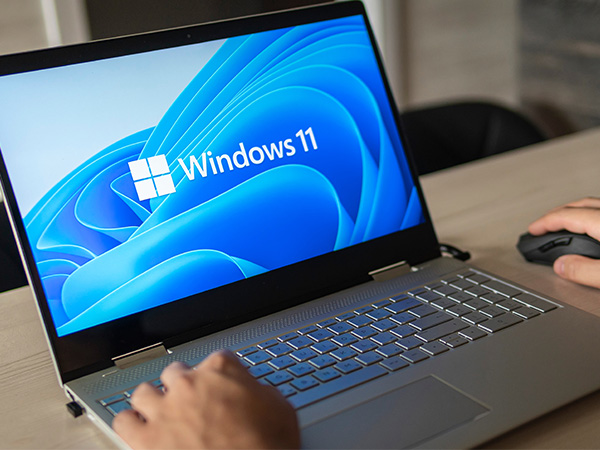
Files saved to your university OneDrive are available when you sign in. If you cannot find a file, check OneDrive online or contact the IT Service Desk for help.
No. The upgrade has already been completed. Continue to save your important files to OneDrive rather than only to the local desktop or Downloads folder, so you can access them from other devices.
This upgrade only applies to university-owned devices. If you use your own laptop or computer, you can upgrade to Windows 11 for free if your device is compatible.
All standard university software has been tested and confirmed compatible with Windows 11. If you use specialist tools specific to your course, your department will confirm compatibility. Contact your department or Digital Services if you are unsure.
The Start menu is now centred at the bottom of the screen. Click the Windows icon to see your pinned apps and recent files. You can right-click the taskbar and choose Taskbar settings to move it to the left if you prefer the classic layout.
Snap layouts lets you quickly arrange multiple app windows side-by-side. Hover your mouse over the maximise button (the square icon at the top of any window) and choose a layout. It is really useful for researching and writing at the same time.
If you experience any issues: